It’s Sunday night. You’re applying for an apartment, and the landlord’s online form wants your ID, two pay stubs and a bank statement. All in one PDF. Right now, they’re four separate files scattered across your phone, your email and your Downloads folder.
Or maybe it’s tax season and your accountant asked for your W-2, a few 1099s and a pile of receipts in a single file. Or a scholarship portal that only accepts one upload.
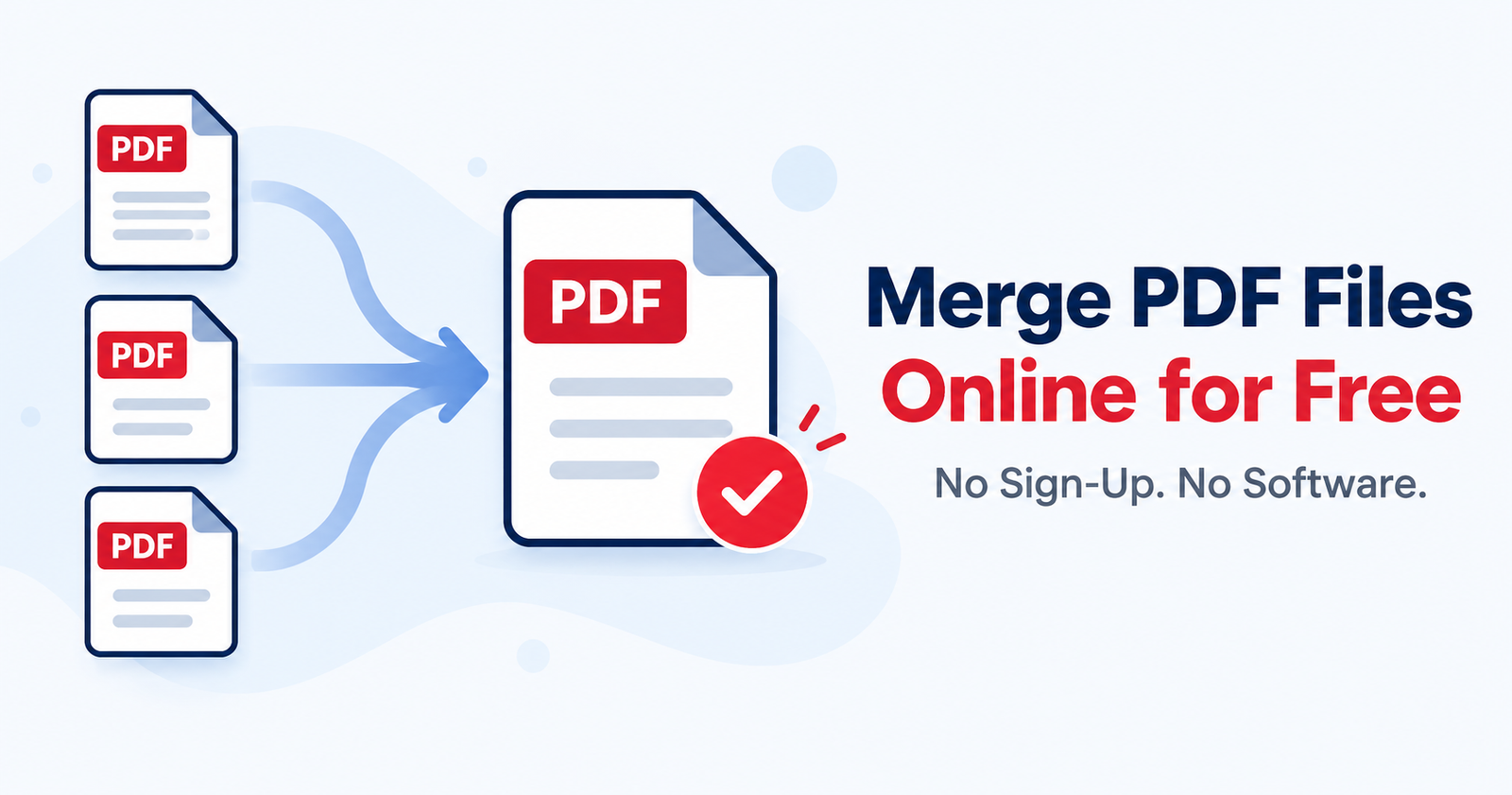
Good news: you don’t need Adobe Acrobat, a paid subscription or a free trial that quietly renews. At ilovepdffiles.com, our Merge PDF tool lets you merge PDF files free right in your browser, usually in under a minute. No sign-up, no software, no watermark drama.
Combine your PDFs right now — free, no account, works on iPhone, Android and PC.
Why Combine PDF Files in the First Place?
Most of us end up merging PDFs more often than we expect. These are some of the most common reasons:
- Students
- Scholarship applications, transcripts, essays and class projects bundled into one upload.
- Job seekers
- Resume, cover letter, references and certifications in one tidy file for the application portal.
- Renters and homebuyers
- ID, pay stubs and bank statements packaged for a landlord or lender.
- Freelancers and small business owners
- Proposals, contracts, W-9s and invoices sent as a single package.
- Tax season
- W-2s, 1099s and receipts organized for your CPA or tax software.
One file is easier to email, easier to upload and a lot harder to lose.
What You’ll Need
Not much:
- Two or more PDF files on your phone or computer
- An internet connection
- Any modern browser, such as Chrome, Safari, Edge or Firefox
No downloads, no account. If a site demands your email just to merge two files, close the tab. There are better options.
How to Combine PDF Online: Step by Step
Open the free Merge PDF tool
Go to our Merge PDF tool. It runs in your browser, so it works the same on a laptop, an iPad or your phone.
Upload your PDF files
Choose the files from your device. The tool handles files up to 200MB, which covers nearly any everyday document.
Put the pages in the right order
The final PDF follows the order you set here. If your cover page ends up last, you’ll be redoing it, so take ten seconds to double-check before moving on.
Click merge
Hit the button and give it a few seconds. Bigger files take a little longer.
Download and check your file
Open the new PDF and scroll through it once. Every page should be there, in order, and right side up. A thirty-second check beats an awkward “sorry, wrong file” email later.
Quick tip: If one of your files is a scan or a photo of a document, make sure it’s clear and readable before merging. A blurry original stays blurry in the final PDF.
Five Habits for a Cleaner Merged PDF
1. Name your files before you upload
Try 01-cover-letter.pdf, 02-resume.pdf, 03-references.pdf. When the names are in order, so are your pages.
2. Watch for mixed page sizes
Most US documents are Letter size (8.5 x 11 in), but files from other countries or some scanners may use A4, and landscape pages can sneak in too. The merge still works. It just might look uneven, so give it a quick look before sending it to an employer or lender.
3. Compress it if the file is too big
Merged scans can get heavy fast, and email services and upload forms often cap attachment size. If you hit a limit, run the file through our PDF compressor. Text stays readable while the file size drops.
4. Cut the pages you don’t need
Blank page from a scanner? Duplicate? Use our split PDF tool to pull out what you need, then merge again. One extra minute, a much more professional file.
5. Keep your originals
Don’t delete the source files right away. If you notice a mistake later, you’ll want them.
Is It Safe to Merge PDFs Online?
It’s the right question to ask, especially when your files include things like a Social Security number, bank account details or a signed lease.
Before you upload anything sensitive, look for a clear privacy policy that explains how files are handled. Skip sites that look spammy, plaster the page with pop-ups, or push you to install a browser extension.
A few extra precautions help too: avoid public Wi-Fi for financial or legal documents, and if you’re on a shared computer at a library or school lab, delete the downloaded file and empty the Downloads folder when you’re done.
Common Problems and Quick Fixes
- The merged file is too big
- Compress it after merging. Scanned pages are usually the reason.
- The pages are out of order
- Go back, reorder the files before merging, and run it again. It only takes a few seconds.
- One of my PDFs won’t upload
- It may be password-protected or damaged. Remove the password, or open the file on your device first to make sure it works.
- The result looks blurry
- That usually comes from a low-quality original scan, not the merge. If you can, rescan in a well-lit spot or at a higher resolution.
Online Merge Tool vs. Desktop Software
Wondering if you should just install a PDF program? Here’s the honest comparison:
FeatureOnline toolDesktop softwareInstallationNoneRequiredCostUsually freeOften a subscriptionWorks on phone or tabletYesRarelyBest forQuick, occasional jobsHeavy daily editing
If you merge a few files here and there, an online tool is faster and simpler. If PDFs are your full-time job, desktop software can make sense. For most people, the browser is plenty.
Need to do more than merge? Browse our full free PDF tools — split, compress and convert PDFs in any direction, all in one place.
Frequently Asked Questions
How do I merge PDF files online for free?
Open a free merge PDF tool, upload your files, put them in the order you want, click merge, and download the combined PDF. Most people finish in under a minute.
Do I need an account to combine PDF files online?
No. You can combine PDF files online without creating an account or entering your email.
Can I merge PDFs on my iPhone or Android phone?
Yes. A browser-based tool works in Safari or Chrome on your phone, so you don’t need to install an app.
Does merging lower the quality of my PDF?
No. Merging joins your files together, so each page keeps the same quality as the original.
How many PDFs can I merge at once?
That depends on the tool, but you can normally combine several files at a time. For a very long list, merge in batches.
What if I need to change the page order after merging?
It’s easiest to get the order right before you merge. If you’ve already merged, split the file and combine the parts again in the correct order.
Final Thoughts
Merging PDFs shouldn’t feel like a tech project. With the right tool, it takes about a minute, costs nothing and works from whatever device you have on hand. Name your files clearly, check the order, preview the result, and you’re done.
The next time a landlord, recruiter or accountant asks for “everything in one PDF,” you’ll know exactly what to do.
Ready to combine your files? No sign-up, no software — just upload, merge and download.